
When integrating a Palm Vein Scanner into your Android POS or biometric system, one of the most common issues is simple: the device doesn’t light up.
Why? Because most integrators overlook one critical factor — power supply.
🔌 Palm Vein Scanner Requires 5V / 1.5A Power Input
Unlike standard USB peripherals, X-Telcom’s Palm Vein Scanner supports RGB + IR dual imaging, which enables highly accurate palm vein recognition. But this also means it requires a minimum of 5V / 1.5A to function properly.
If your system supplies less than this (as most Android devices do), the scanner’s LED will not turn on, and the device will not operate.
⚠️ Why Most Android or POS Devices Fail to Power the Palm Vein Scanner
The majority of Android phones, tablets, or POS terminals only output 500mA to 900mA from their USB ports—far below the Palm Vein Scanner’s required 1500mA.
That’s why simply plugging it into your device won’t work. No need to assume the hardware is faulty—it’s just a power limitation.
✅ The Right Way: Use a Powered USB HUB for Your Palm Vein Scanner
Rather than modifying the motherboard of your POS or Android terminal (which is costly and complex), the best solution is to use a powered USB HUB.
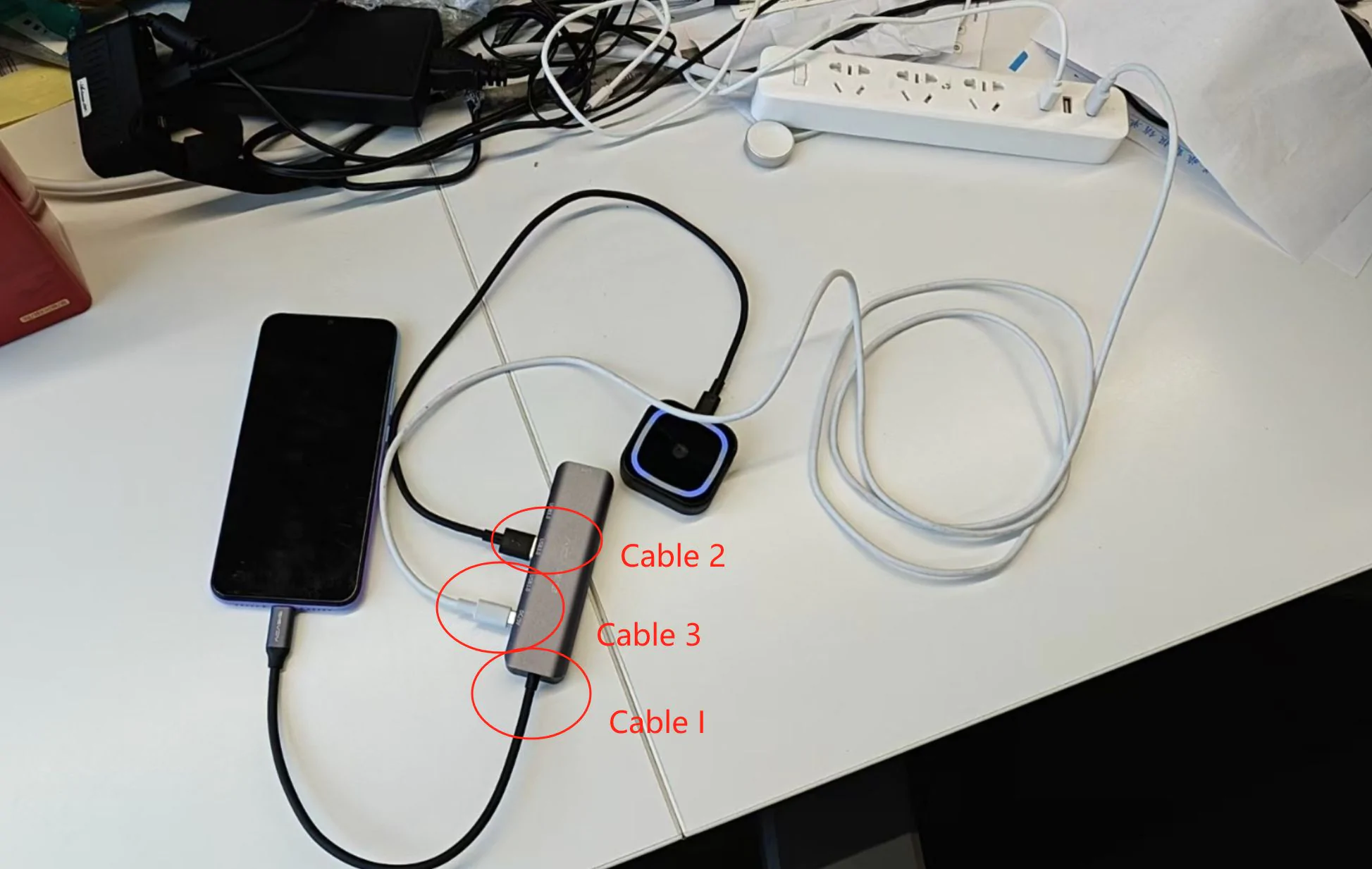
How to Connect:
- Cable 1 & Cable 2: These are USB ports on the HUB. You can use either one to connect the Android device and the Palm Vein Scanner.
- Cable 3: This is the charging input of the HUB (typically a DC or PD port). It must be connected to an external charger or power adapter to deliver the required current.

With this setup, the HUB powers the Palm Vein Scanner independently, ensuring stable operation.
💡 LED Not Lighting Up? It’s a Power Problem
If your Palm Vein Scanner’s LED indicator stays off, it’s a clear sign of insufficient current. Before checking software or drivers, always confirm your power source.
🛠️ Avoid Modifying the Motherboard — It’s Not Worth It
Some developers consider modifying their Android or POS device’s USB power output. But this approach is:
- Technically complex
- Risky for certification or stability
- Unnecessary
💡 Using a powered USB HUB is faster, safer, and cheaper.
🧩 Summary: Palm Vein Scanner Power Guide
| Key Point | Details |
|---|---|
| Minimum Power | 5V / 1.5A |
| Android Output | Usually insufficient |
| LED Off | Means low power |
| Best Solution | Use a powered USB HUB |
| Don’t Do | Don’t modify the mainboard |
Need Help Choosing the Right HUB for Your Palm Vein Scanner?
X-Telcom provides recommendations for HUBs and power adapters tested with our Palm Vein Scanner models. Feel free to reach out for supported accessories or integration assistance.
📞 Have questions about palm vein power setup, SDK, or embedded integration?
Our support team is here to help.